The Hidden Risks of Exposed LM Studio Servers
The Problem
LM Studio is a powerful GUI-based application that makes running local LLMs accessible to everyone. It also ships a local server that gives you an OpenAI-compatible API on port 1234.
This server allows you to use your local models with other applications or share them across your local network. Like a lot of developer tools it picks ease of use over security by default. Turn the server on and flip “Serve on Local Network” without a firewall in front of it and you have opened a door to the internet.
What Can Go Wrong
LM Studio’s server does not enforce authentication by default. If your machine is directly connected to the internet or your router forwards port 1234, an attacker can:
- Query your models. Somebody else uses your GPU to generate text or code.
- Cost you money. Continuous inference on a rented box is a bill for work you never asked for.
- Leak context. If the session carries earlier conversation then whatever was in it may be readable.
How I Found This
I wanted to know whether the ease of use design had produced the same accidental exposure I keep finding in other dev tools. LM Studio has one toggle in the GUI that turns the server on.
So I went looking with FOFA, a cyberspace search engine.
I searched for machines exposing port 1234 with a signature specific to LM Studio’s server response. The query I used was: port="1234" && body="LM Studio".
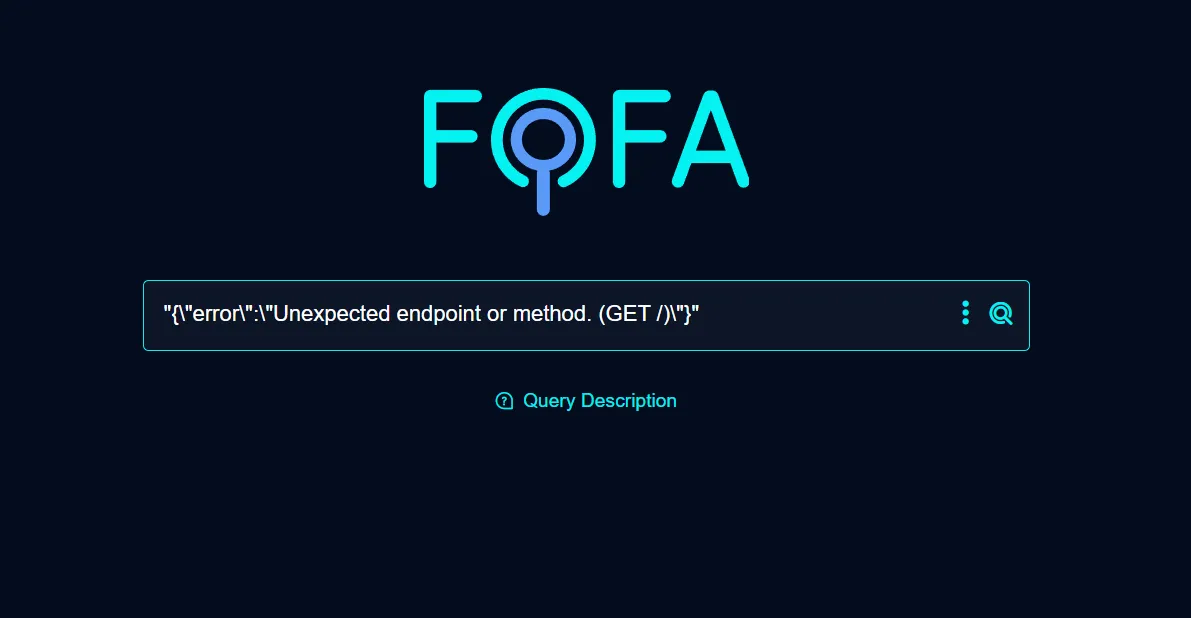
I found over 3,000 exposed hosts.
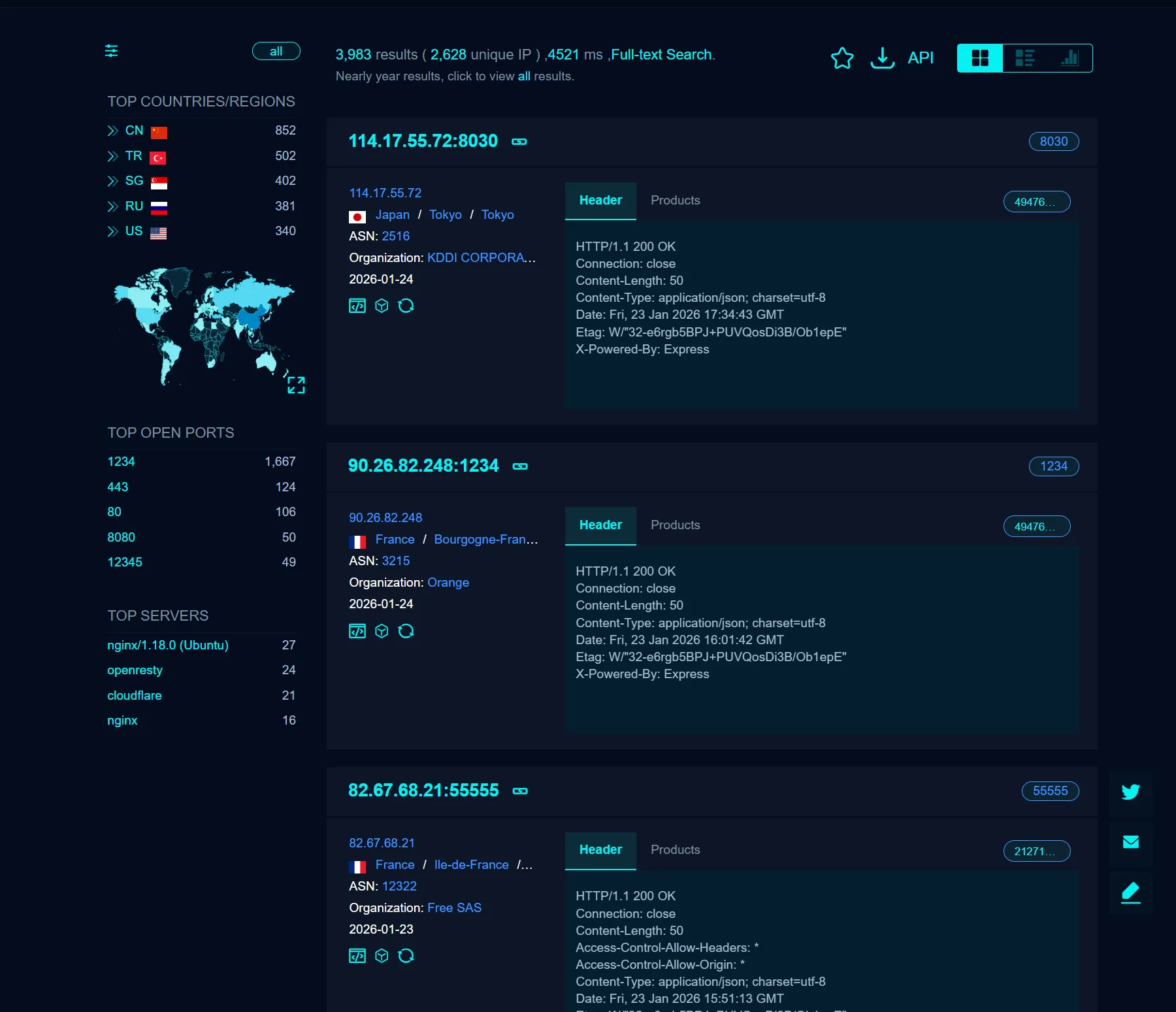
These are not empty servers. They are working API endpoints that answer prompts.
How to Protect Your LM Studio Instance
If you use the server feature there are three steps that keep you safe.
1. Bind to Localhost Only
Unless you need another device to reach it bind the server to 127.0.0.1 instead of 0.0.0.0. The toggle is in the server settings in the GUI.
2. Use a Firewall
If you do need “Serve on Local Network” then let your OS firewall or your router block port 1234 from outside and allow only the local addresses you use.
3. Disable the Server When Not in Use
Turn it off when you are done. Start the local server when you are using it and close it when you are not.
Conclusion
LM Studio puts a model server on your desktop and that means the same network responsibilities you would have on a cloud box. One checkbox is all that stands between your GPU and the internet. Check what a server toggle actually listens on before you leave it running.