The Hidden Risks of Exposed LM Studio Servers
The Problem
LM Studio is a powerful GUI-based application that makes running local LLMs accessible to everyone. It includes a convenient feature: a local server that provides an OpenAI-compatible API on port 1234.
This server allows you to use your local models with other applications or share them across your local network. However, like many developer tools, it prioritizes ease of use over security by default. When you enable the server, especially if you toggle “Serve on Local Network” without a proper firewall, you might be opening a door to the entire internet.
What Can Go Wrong
LM Studio’s server does not enforce authentication by default. If your machine is directly connected to the internet or your router forwards port 1234, an attacker can:
- Query your models: Use your compute resources to generate text or code.
- Rack up electricity bills: Continuous inference on your GPU consumes significant power.
- Access loaded context: If the model has context from previous sessions (depending on implementation), sensitive data could theoretically be exposed.
How I Found This
I wanted to see if the “ease of use” design philosophy had led to accidental exposure similar to what we see with other dev tools. LM Studio has a specific toggle in its GUI to enable the server.
I turned to FOFA, a cyberspace search engine, to hunt for exposed instances.
I searched for machines exposing port 1234 with a signature specific to LM Studio’s server response. The query I used was: port="1234" && body="LM Studio".
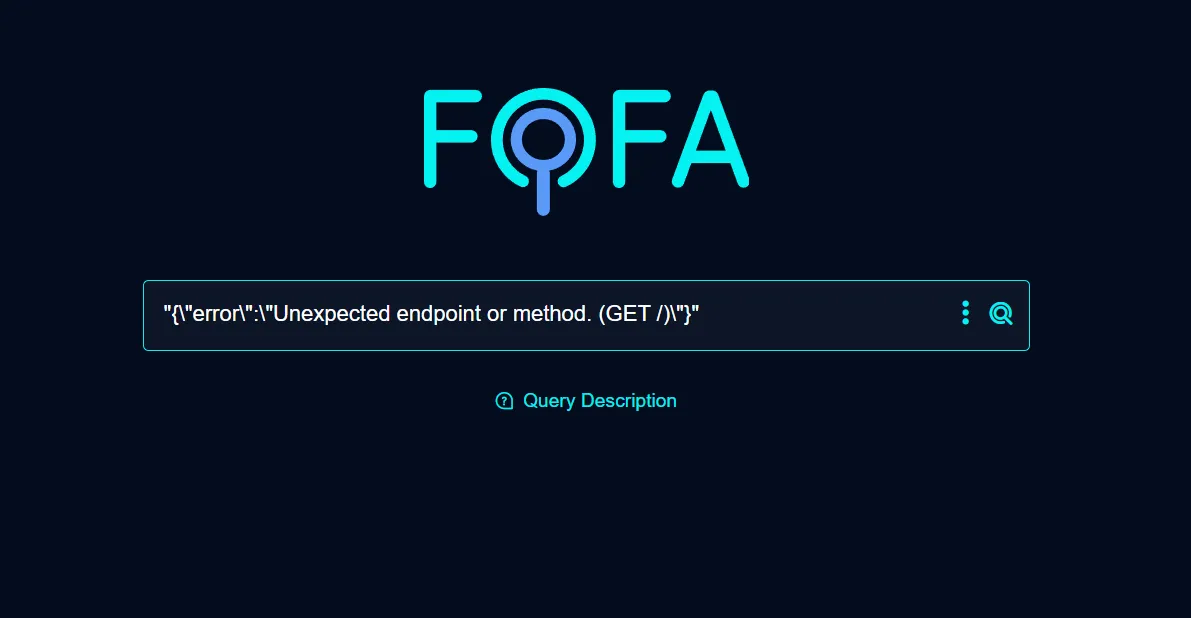
The results confirmed my suspicions. I found over 3,000 exposed hosts:
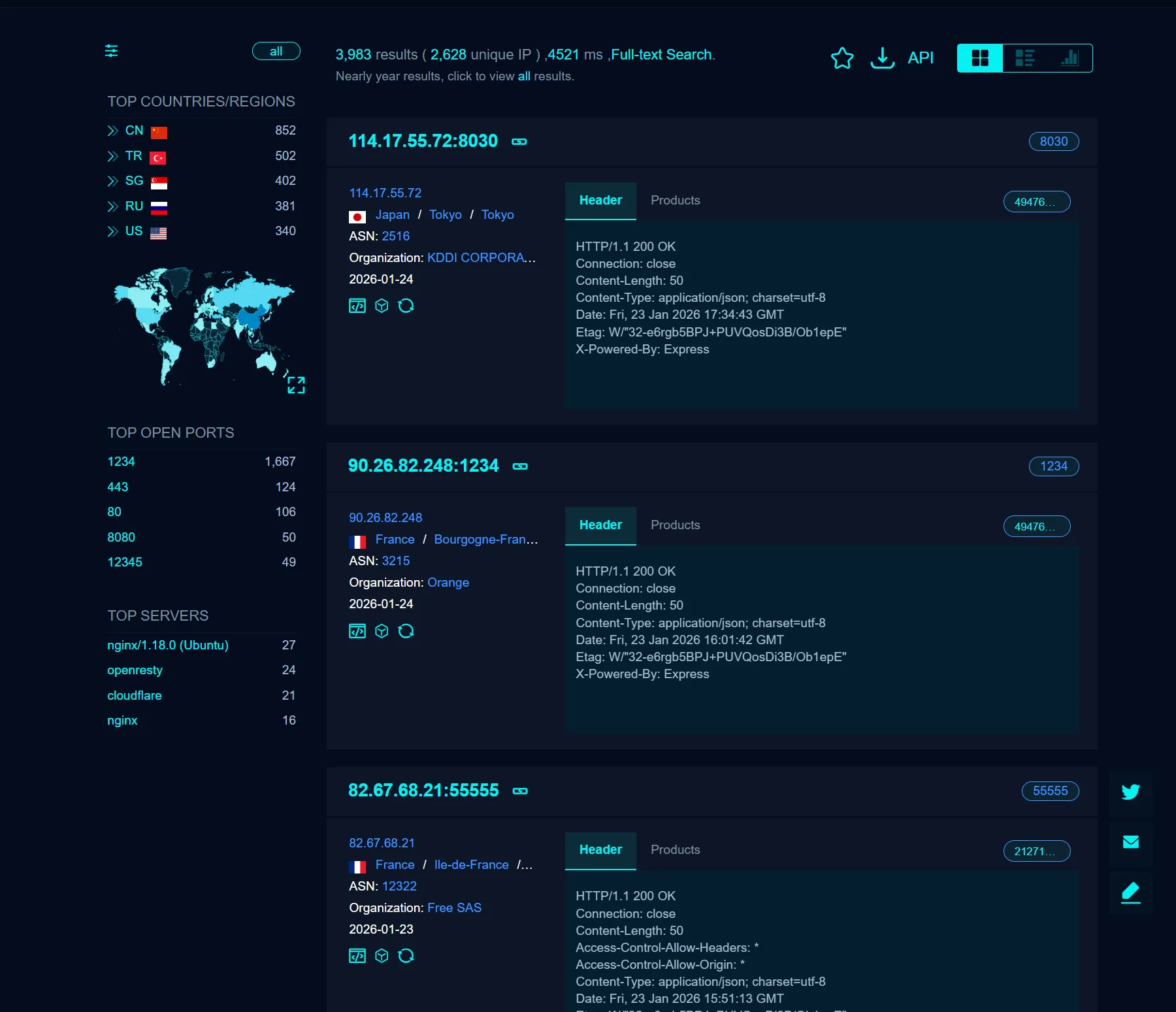
These aren’t just empty servers; they are fully functional API endpoints waiting for prompts.
How to Protect Your LM Studio Instance
If you use LM Studio’s server feature, follow these steps to stay safe:
1. Bind to Localhost Only
Unless you specifically need to access LM Studio from another device, ensure the server is listening on 127.0.0.1 (localhost) rather than 0.0.0.0 (all interfaces). In the LM Studio GUI, check your server settings.
2. Use a Firewall
If you must “Serve on Local Network,” configure your OS firewall (Windows Defender or macOS Firewall) or your router to block incoming traffic on port 1234 from the public internet. Allow connections only from trusted local IP addresses.
3. Disable the Server When Not in Use
The simplest defense is to turn it off. Only start the Local Server when you are actively using it for development or testing.
Conclusion
Tools like LM Studio are democratizing AI, but they also bring cloud-grade security responsibilities to the desktop. A single checkbox in a GUI can expose your hardware to the world. Always verify your network exposure when enabling server features on local tools.
Enjoyed this post? Buy me a coffee ☕ to support my work.
Need a project done? Hire DevHive Studios 🐝